Set it up once: forwarding order emails to Xpento
· 5 min read
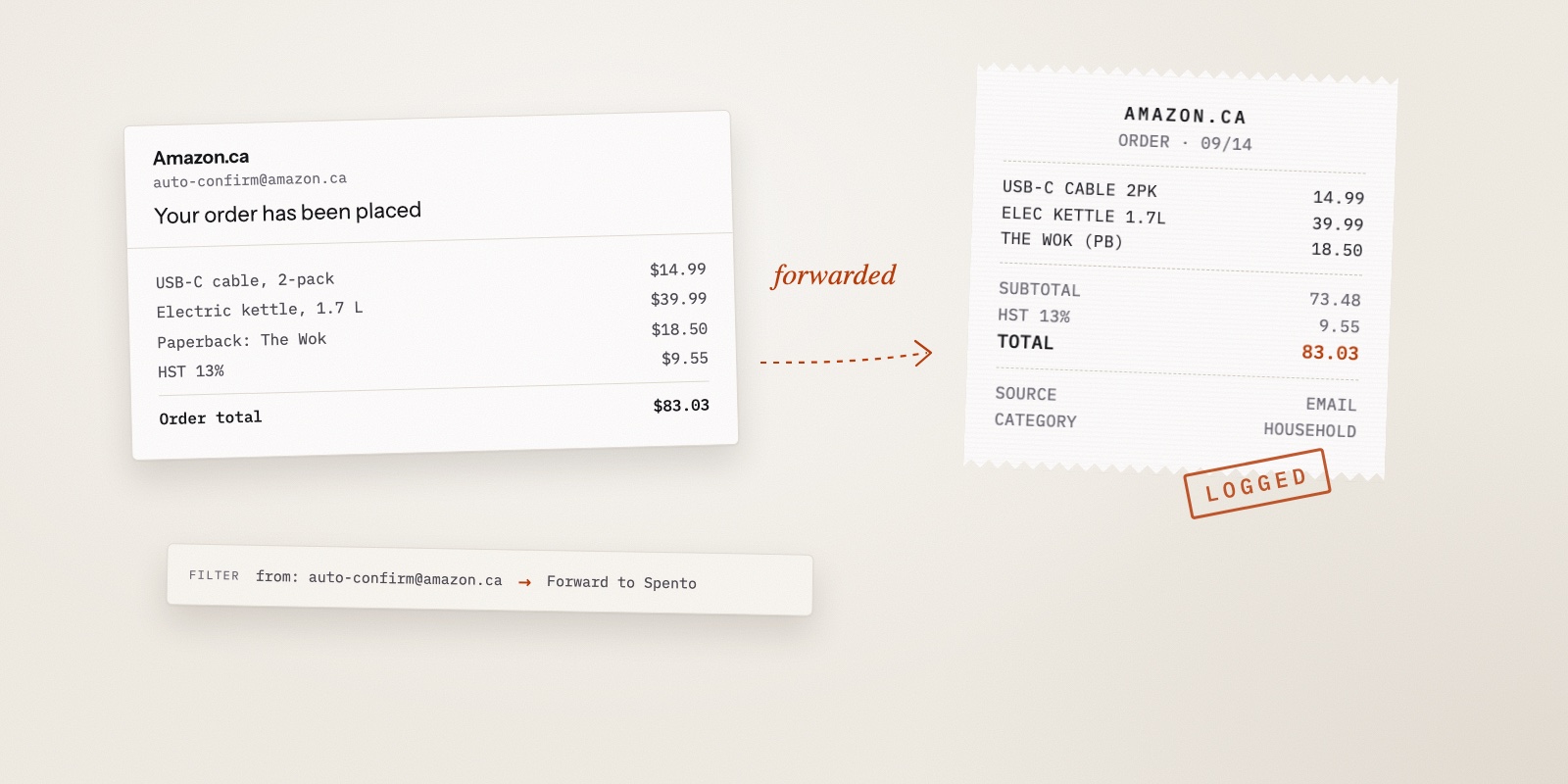
Here's something I noticed when I started tracking receipts: the paper ones were never the hard part. The hard part was online orders.
There's no paper to photograph. The receipt is an email, sitting in an inbox between a newsletter and a password reset, and it's gone from your mind the moment the parcel arrives.
But that email is already a perfect receipt. It has the store, the date, every item and the total. It just needs to go somewhere useful, without you sending it there each time.
What it costs to do this by hand
Take an example month of online spending:
| Source | Emails a month |
|---|---|
| Online shop orders | 4 |
| Food delivery | 6 |
| Rides | 5 |
| Subscription renewals | 3 |
| Total | 18 |
Say each one takes a minute to open, read and type in. That's 18 minutes a month, or 216 minutes a year: about three and a half hours of copying numbers that are already written down. Most people don't do it. They skip the small ones, then the month's total is wrong and they stop trusting it.
A mail filter does the same job in no time at all, once it's set up.
Your private Xpento inbox
Every Xpento account, Free or Premium, gets its own email address. Anything sent to it is read and logged as an expense, the same way a photo of a receipt is. PDF attachments are read too, and so are order emails where the store draws the receipt as a picture instead of text (Temu's order confirmations do this).
You'll find the address in Settings, next to a step-by-step guide for your email app.
Receipts from email have their own monthly allowance, separate from photo uploads:
| Free | Premium | |
|---|---|---|
| Receipts from email, per month | 30 | 200 |
| Emails received, per day | 10 | 50 |
| Emails received, per month | 50 | 500 |
The example month above, at 18 receipts, fits in Free with room to spare. The "emails received" limits count everything that arrives, receipt or not, which is one more reason to forward only receipts.
One filter, not one per store
The old way to set this up was a filter per store: find Amazon's order address, make a filter, then do it again for every shop. It works, but most people stop after two.
Xpento's guide now gives you a single filter that covers every store on its list. It matches each store's receipt address and, where needed, the words in a receipt's subject line, so it forwards order confirmations and leaves the marketing behind. The stores it covers are listed on the guide page.
Gmail
Gmail lets you import a filter from a file, so you don't type anything in:
- On a computer, click the gear icon → See all settings → Forwarding and POP/IMAP → Add a forwarding address, and paste your Xpento address.
- Gmail sends a confirmation code to that address. Open Emails in Xpento, find the message from Google (it's marked "not a receipt") and enter the code in Gmail. Leave Disable forwarding selected. You don't want all your mail forwarded, only receipts, and the filter takes care of that.
- Download the filter file from the guide. In Gmail, go to Filters and Blocked Addresses → Import filters, choose the file, click Open file and then Create filters.
That's it. The file already has your Xpento address in it. If you'd rather build it by hand, the guide shows the search text to paste into a new filter.
Outlook and Apple Mail
Neither can import Gmail's file, so you make the rule yourself (the guide says if its list needs more than one):
- Outlook.com: gear icon → Mail → Rules → Add new rule. Add a From condition with the addresses the guide lists, and Subject includes with its phrases, then Forward to your Xpento address. Work and school Microsoft 365 accounts may block forwarding outside the organisation. If yours does, you can still forward receipts one at a time by hand.
- Apple Mail on a Mac: Mail → Settings → Rules → Add Rule, choose "any of the following conditions", and add a From contains condition for each address. Apple Mail can't check the subject in the same rule, so a few non-receipt emails from those stores will get through. Xpento recognises those and skips them. Click Don't Apply when you save, so only future emails are forwarded.
The guide shows the exact addresses and phrases, with copy buttons, so you don't have to look anything up.
Stores that aren't on the list
A local shop or a smaller site won't be on the list yet. You have two choices:
- Forward its receipts by hand when they arrive. That's fine for a store you use once a month.
- Add a filter of your own for it, using the same steps with that store's order address. Look at the "From" line of an order confirmation, not a newsletter. Stores often send the two from different addresses.
Don't bother for a store you bought from once. Filters pay off for the places that email you every week.
What if something gets forwarded twice?
It happens, especially while you're testing a new filter. Xpento recognises an email or attachment it has already seen and won't log it a second time.
Shipping updates and promotions that slip through are marked "not a receipt" and don't become expenses. You can see them in Emails if you're curious what got through.
What happens at the limit
On Free, if you pass 30 receipts from email in a month, new ones aren't logged. They're kept in Emails and you get one notice that month, so you know the gap is there. Photo uploads have their own allowance and still work. If you regularly go past 30, that's a busy online month, and it's the point where Premium's 200 starts to matter.
Set it and forget it
This is my favourite part of Xpento, because it's the only part that asks nothing of you. Once the filter is in place, online orders just show up, categorised and itemised, without you opening anything.
Open the forwarding guide in Settings this weekend and do the three Gmail steps. Then check Emails after your next online order to see it arrive.
— Rayhan Shikder